Escaping the Consumer NAS Wrapper: Migrating from Ugreen to UniFi Drive via SSH
The primary indicator of architectural maturity is the centralization of identity and access management. Disparate consumer storage OS instances on a production network are not just management overhead; they are unmonitored attack vectors and sources of Communication Debt.
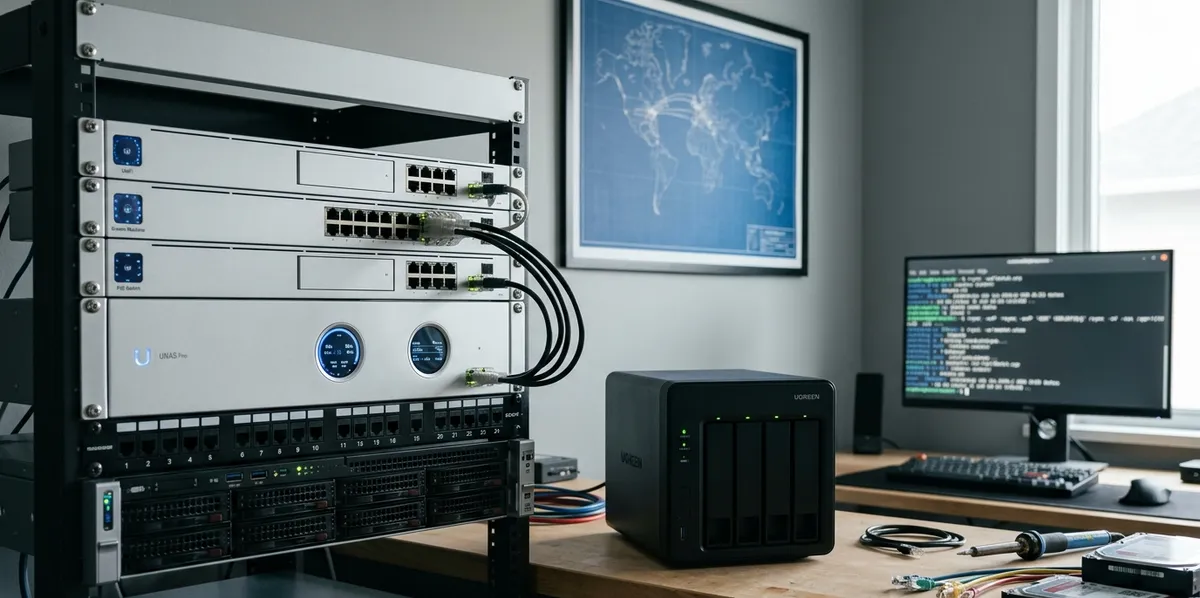
Recently, I finalized the deprecation of a Ugreen NAS in favor of migrating to a UniFi NAS (UNAS Pro). Moving away from a standalone consumer NAS OS (UGOS) toward a unified control plane was a deliberate security decision. Consolidating storage into UniFi OS provides centralized access control, tighter integration with existing network and routing policies, and systematically removes a third-party OS from the local perimeter.
However, migrating terabytes of data between two proprietary appliances reveals the hidden complexity of modern storage platforms. Consumer NAS platforms rely heavily on abstracting standard POSIX operations behind proprietary wrappers. When you attempt standard system administration, you hit a wall of architectural mismatch.
Here is the technical post-mortem of why standard pull operations fail on Ugreen, and the exact, machine-to-machine push methodology required to migrate your data.
The Naive Approach: Why the Pull Method Fails
Standard protocol for data migration dictates logging into the target machine (the UniFi NAS) and initiating an rsync pull from the source machine (the Ugreen NAS).
When you attempt this against a Ugreen appliance, the logic breaks at the authentication layer. Ugreen implements a custom security wrapper for incoming SSH connections called ug_start_server. Even if you authenticate as NAS-Admin (the top-level user generated by the UI) and ensure the target directory has 777 permissions, Ugreen actively prevents remote, non-interactive shells from escalating privileges.
Attempting to pull data generates the following failure mode in the logs:
cannot set euid as root
invalid path: '/volume1/SourceFolder/'
rsync error: error starting client-server protocol (code 5) at main.c(1859)
This is not a filesystem error; it is an undocumented firewall masking the true filesystem from remote command execution. The system deliberately breaks standard rsync handshakes to force users into their proprietary application ecosystem.
Reversing the Flow: The Push Methodology
To bypass Ugreen’s inbound security constraints, we must alter the topology of the transfer. Instead of pulling the data, we initiate the transfer locally on the Ugreen NAS and push the data outbound to the UniFi NAS.
By establishing an interactive SSH session directly into the Ugreen NAS, we can elevate to the true root user. This local escalation circumvents the ug_start_server wrapper, allowing uninhibited, outbound read access to the local volumes.
Navigating the UniFi Drive Black Box
Before initiating the transfer, you must define the target path. UniFi Drive does not expose standard shared folders at the root volume level. The platform abstracts user data into hidden subdirectories to allow unifi-core to manage indexing and state.
If you attempt to write data to /volume1/FolderName/, the UniFi UI will ignore it. You must SSH into the UniFi NAS and locate the internal storage path, which typically follows this structure:
/volume/UUID/.srv/.unifi-drive/FolderName/.data/
The .data directory is the true target destination for your files.
The Execution: Direct Machine-to-Machine Sync
The following workflow establishes a direct, background synchronization process, ensuring your workstation is not acting as a bottleneck.
1. Elevate Privileges on the Source (Ugreen)
SSH into your Ugreen NAS and escalate to true root to bypass the wrapper:
sudo -i
2. Generate and Deploy SSH Keys
To prevent rsync from stalling on authentication prompts during background execution, establish key-based trust between the machines.
# Generate the key with no passphrase
ssh-keygen -t rsa -N "" -f ~/.ssh/id_rsa

# Copy the key to the UniFi NAS
ssh-copy-id root@YOUR_UNIFI_IP
3. Initiate the Rsync Process
Execute the migration command. We use nohup to detach the process, ensuring the transfer survives session termination.
nohup rsync -avP "/volume1/SourceFolder/" root@YOUR_UNIFI_IP:/volume/UUID/.srv/.unifi-drive/TargetFolder/.data/ > /tmp/push_migration.log 2>&1 &
Architectural note on parameters:
-a(Archive): Preserves standard filesystem metadata (timestamps, symlinks, etc.).-vP(Verbose & Partial): Outputs detailed logging and allows for resuming partially transferred files in the event of a network interruption.- The trailing slash on
/volume1/SourceFolder/is critical. It instructsrsyncto sync the contents of the folder, preventing it from nesting a duplicate directory inside the target.
4. Monitor the Transfer State
You can safely disconnect your terminal. To observe the migration progress at any time, tail the output log:
tail -f /tmp/push_migration.log
The Post-Migration Panic: Reconciling Permissions
Once the transfer completes, you will encounter a secondary failure state in the UniFi web interface. The target folder will be locked, accompanied by the warning: “Folder Has Been Modified. This folder has been moved, renamed, or deleted.”
This is a predictable consequence of our methodology. Because we pushed the data as root using the -a (archive) flag, the files arrived on the UniFi filesystem owned by root. The UniFi Drive application runs under the restricted unifi-core daemon. When the daemon attempts to index the new files, it hits a permission denial and assumes the folder structure is corrupted.
To remediate this, you must SSH into the UniFi NAS and clone the directory ownership from the parent wrapper down to the newly migrated files.
# Apply ownership of the parent folder to the hidden .data contents
chown -R $(stat -c '%U:%G' /path/to/TargetFolder/) /path/to/TargetFolder/.data/
Refresh the UniFi web interface. The ownership mismatch will be resolved, the error will clear, and the migration is complete.
Summary
Consumer network appliances prioritize web interfaces over POSIX compliance. When vendors wrap standard protocols in proprietary security layers, standard administration tasks inevitably break. The root cause of this migration friction is a deliberate design choice by Ugreen to sandbox the underlying OS.
The pragmatic takeaway for infrastructure management: never assume standard shell commands will behave predictably inside a consumer appliance wrapper. Always map the underlying filesystem logic and verify authentication boundaries before executing large-scale data migrations.